Use AI Video Generators Inside a Real Production Workflow
Treat text-to-video as draft footage: brief it carefully, edit the output, and verify facts, continuity, and usage rights.

A generated clip can help explore a visual direction or create a supporting shot, but it is not automatically a finished story. Human decisions still shape the concept, continuity, pacing, and responsibility for what the audience sees.
Give generated footage a single job in the cut
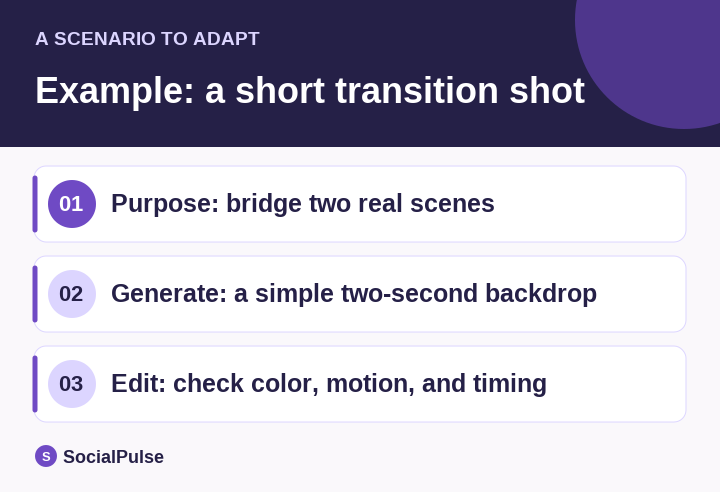
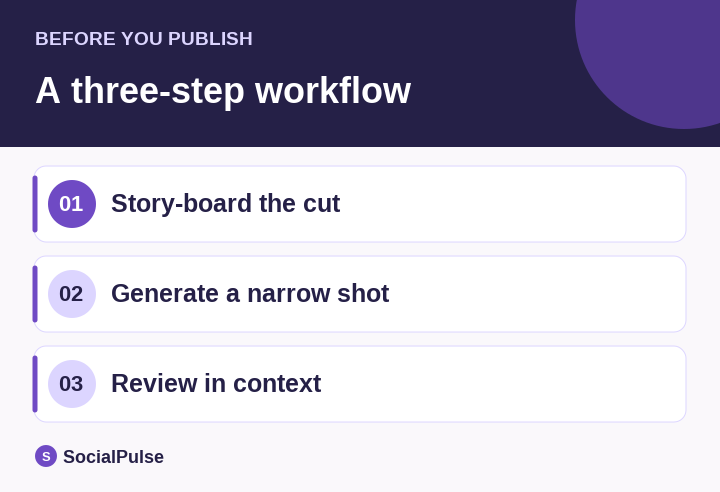
Make the edit with placeholders first. Write the exact duration, framing, movement, and relationship to adjacent shots. A brief transition is easier to judge than an entire scene whose purpose is unclear.
Worked example
For a two-second transition between real desk shots, ask for a tight view of soft light moving over a plain surface. Review whether the movement, exposure, and direction match both shots when played at normal speed.
What to do with the result
Keep a manual backup cut. If the generated shot calls attention to itself or introduces a continuity error, try the backup and compare both cuts in context.
Write a shot brief, not a pile of adjectives
Describe the subject, action, setting, camera position, lighting, and aspect ratio. Keep each prompt focused on one shot. If you need a sequence, create separate shots and plan how their colors, subjects, and screen direction will connect in the edit.
Use generation for the right production gap
AI may help when you need a visual concept, a background plate, or a short illustrative moment. It can be a poor fit when authenticity, exact product behavior, documentary evidence, or a person’s likeness is central. Choose real footage when viewers need to trust that a specific event happened.
Edit and label responsibly
Review for inconsistent objects, unintended text, and visual claims that could mislead. Keep a record of the tool and assets used, and check current license conditions before client or commercial use. For example, Runway’s current guidance describes separate text-to-video and image-to-video workflows; its model and credit terms can change.
A working guide for your next session
Prepare an actual brief before prompting
Define the audience, purpose, scene, duration, aspect ratio, and elements that must remain stable. Keep reference assets that you have rights to use. A prompt cannot replace decisions about the story; it can only help explore a direction. If the result is meant to show a real product, person, or event, decide how you will keep the visual accurate before you generate it.
Use generated clips as drafts to evaluate
Generate a small number of candidates and compare them against the brief. Review composition, continuity, movement, text, and whether a viewer could mistake fiction for documentary footage. Edit only clips that strengthen the final piece. For many projects, a real demonstration, stock asset with the right license, or simple motion graphic will be clearer and more reliable.
Check rights and keep a production record
Read the provider’s current terms for input retention, output use, commercial rights, attribution, and plan limits. Keep notes on the prompts, source media, tool, edits, and any disclosure the platform requires. Never upload confidential client or personal material without approval. The creator or publisher remains responsible for the final video and its claims.